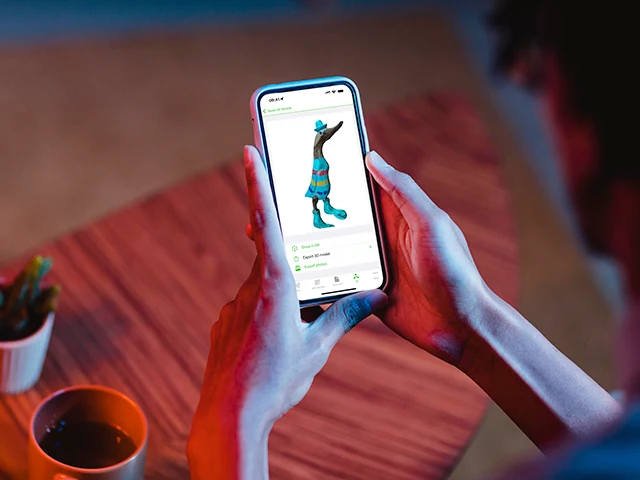
A few years ago, 3D scanning meant a dedicated scanner the size of a microwave, plus software that cost more than the hardware. Today an iPhone with a LiDAR sensor and Apple’s Object Capture API can produce a useable 3D model from a handful of photos.
NFC.cool Tools’ 3D Scan feature wraps that pipeline into a pocketable workflow.
What’s actually happening
Two technologies work together:
Photogrammetry - The app captures dozens of photos of the object from different angles. A photogrammetry engine (Apple’s Object Capture API on iOS) finds matching features across the photos and triangulates them into a 3D mesh.
LiDAR - On iPhones with a LiDAR sensor (Pro models from iPhone 12 onwards), each frame is augmented with depth measurements taken by the sensor. This sharply improves the mesh in two ways: scale is accurate (the model is the real-world size), and surfaces without obvious visual features (a plain white wall, a glossy curve) get usable geometry where photogrammetry alone would fail.
You don’t have to think about either step - the app guides you through capture, then runs the reconstruction on-device.
How to capture a good scan
A few practical rules:
Move slowly around the object. The app expects roughly continuous coverage. Don’t jump from one side to the opposite side - walk around.
Keep the object in frame. A consistent margin around the object is fine; cutting it off at the edges loses data.
Even lighting. Hard shadows confuse the photogrammetry stage. Diffuse light (open sky, a softbox, daylight indoors) gives the cleanest mesh.
Textured objects scan better than featureless ones. A patterned mug scans almost perfectly. A polished metal sphere is genuinely hard. LiDAR helps with the latter but won’t completely save it.
Stand still for a moment at each angle. Motion blur eats detail.
The full scan takes 20-40 seconds of walking, then another 30-60 seconds of processing.
Export formats
NFC.cool Tools exports to the formats you actually need downstream:
.stl - 3D printers. Slicers like Bambu Studio, Cura, PrusaSlicer all accept it.
.obj - Universal 3D format. Imports into Blender, Cinema 4D, Unity, Unreal, basically every modelling tool.
.ply - Mesh format that preserves vertex colours - useful when texture matters more than UV-mapped materials.
.usdz - Apple’s AR format. Drop into Quick Look, AR Quick Look, or use in RealityKit.
.abc (Alembic) - Animation pipelines.
.usd - Universal Scene Description, supported by most modern DCC tools.
The model is the same. The format just decides which downstream tool can consume it.
What you can do with the result
The most fun applications we’ve seen from users:
3D print a one-off replica. Scan a found object, slice, print.
Document a real-world asset. Estate documentation, museum cataloguing, “what does grandma’s vase actually look like”.
Share in AR. Send the .usdz to someone on an iPhone - they tap it and see the object floating in their living room via AR Quick Look.
Drop into a game engine. A real-world prop in a Unity scene, modelled in 90 seconds without a 3D artist.
When it works, and when it doesn’t
Photogrammetry plus LiDAR is strong on:
Solid, opaque objects
Textured or patterned surfaces
Static subjects (anything that doesn’t move during the scan)
It struggles on:
Transparent or refractive objects (glass, water, lens)
Highly reflective metal
Very thin features (cables, wire, hair)
Anything that moves
For the things it’s good at, the result is genuinely useful - not a toy. For the rest, expect to clean up the mesh in Blender or accept the limits.
3D Scan is part of NFC.cool Tools for iPhone. Photogrammetry works on any modern iPhone; LiDAR augmentation works on Pro models.