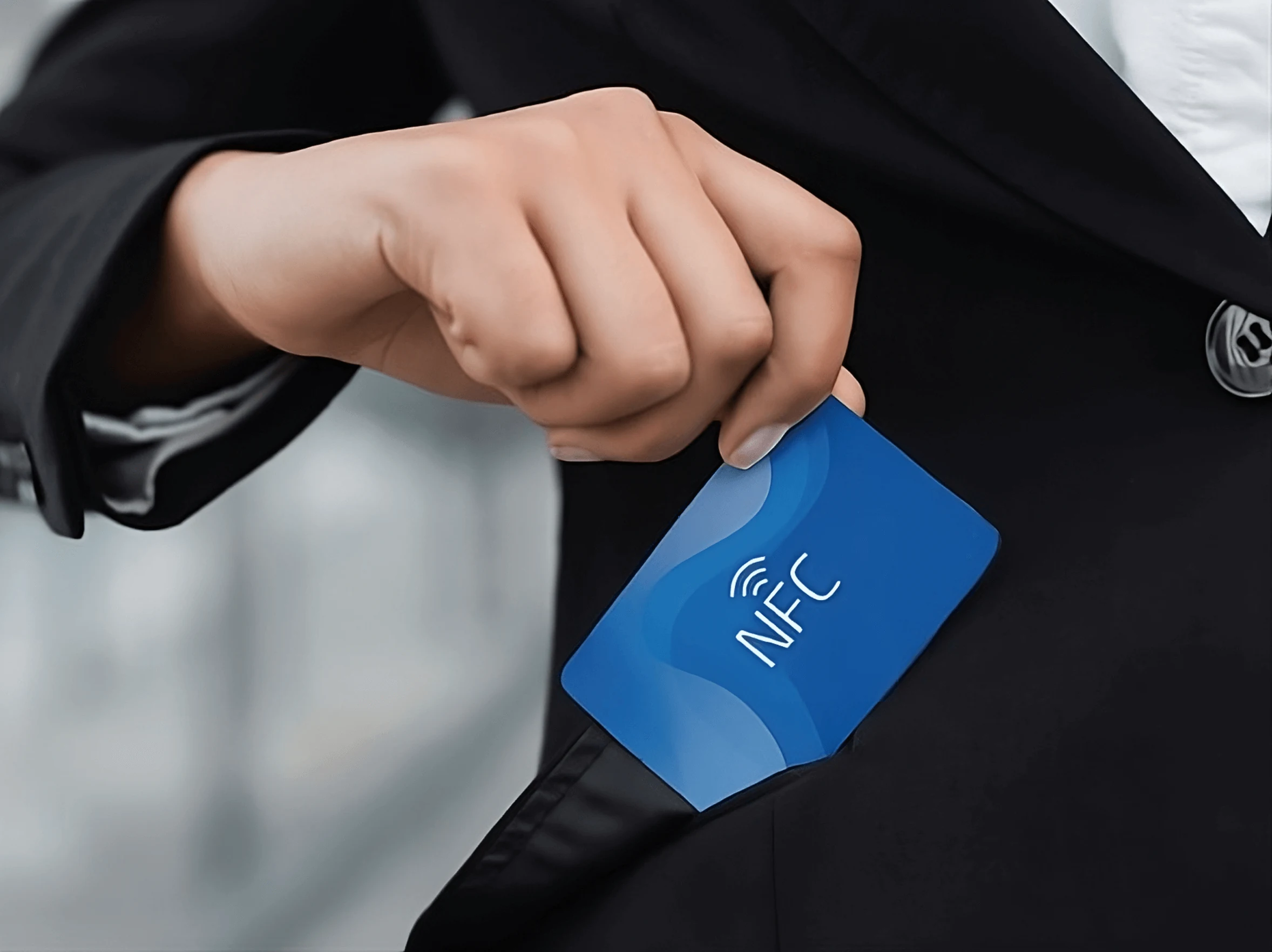
A paper business card is a frozen artefact. The minute your job title changes, your phone number changes, or you move agencies, every card in someone’s wallet becomes wrong information about you.
The NFC.cool digital business card flips that around: one URL that you control, written to an NFC tag (or a QR code, or both). You edit your details on your phone, and every existing tag updates instantly. Here’s how to set it up.
Install the app
Download NFC.cool for iPhone or Android. The business card feature is bundled into NFC.cool Tools on both platforms - no separate purchase, no separate download.
Build the source contact in Contacts
Open the iOS Contacts (or Android contacts) app and create a contact for yourself with the details you want available to the world: name, organisation, job title, work email, work phone, website, LinkedIn URL. Double-check spelling and formatting - this is the master record.
You don’t need to put everything in. Anything sensitive (personal mobile, home address) can stay off this contact entirely.
Open NFC.cool and create the business card
Inside NFC.cool, navigate to the Business Card section and tap Create Account. You’ll set a username and PIN - the PIN is what protects future edits, so don’t lose it.
Tap Open Contacts and select the contact you just built. NFC.cool pulls the data in and shows it as your draft business card.
Pick which fields are public
This is the most important step. You can untick any field you don’t want shared - if your Contacts entry has a personal mobile number you’d rather keep private, untick it here and it won’t appear on your shared card.
Common loadouts:
Sales: name, title, work phone, work email, company, LinkedIn.
Engineering: name, title, work email, GitHub, website.
Creative: name, title, Instagram, portfolio URL, work email.
Tap Next when you’re done.
Customise the logo
Tap Your logo → Change logo to upload your company logo or personal mark. Transparent PNG gives the cleanest result - it composites correctly on both light and dark themes.
Write the URL to an NFC tag
Now the physical side. You can buy an NFC tag from the NFC.cool shop or any third-party retailer - sticker, card, keyring, whatever form factor fits.
In NFC.cool, tap Write business card to NFC tag. Hold your phone against the tag. The app writes a short URL pointing at your card page on nfc.cool. Once it’s written, anyone with a phone can tap it.
If you want to lock the tag so no one can overwrite the URL later, tap Lock after the write succeeds. This is irreversible - only lock tags you’re sure about.
Preview before sharing
Tap View Business Card to see exactly what a recipient sees. The page is mobile-first, loads instantly, and offers a one-tap “Save to Contacts” button. On iOS, recipients see a native App Clip (no app install required); on Android they see a clean web page on the nfc.cool domain. Both end up with your contact in their address book.
Why this beats a vCard QR
The classic alternative is a QR code with a vCard embedded directly. It works without any service in the middle - the QR encodes the contact data itself.
The trade-off: it can’t be updated. Print 500 cards, change your job, and you’ve got 500 cards with stale data.
The NFC.cool flow keeps your contact details on the server. The tag (or QR) just points at the URL. You change your details once in the app; every tag everyone has ever tapped now resolves to the updated info.
That’s the only feature that matters for serious networking - the data outlasts the printed card.
NFC.cool Tools (iPhone) · NFC.cool Tools (Android) · or the standalone NFC.cool Business Card for iOS.